
Yale lock keeps beeping (quick answer): Yale lock keeps beeping most often because the four AA alkaline batteries are low; it can also beep when a code is entered incorrectly or when the wiring harness is loose. Replace batteries, check polarity, verify the harness, and review code and lock settings.
If the lock is beeping, replace all four batteries with fresh alkaline cells.
The lock uses four AA alkaline batteries; keep spare batteries on hand for quick replacement. Replace all four cells with fresh alkaline ones and verify that each battery is inserted with the correct polarity.
After the new batteries are in place, close the battery case fully and make sure the batteries are seated properly. This ensures a solid connection and prevents intermittent power loss.
If the beeping continues, first press each keypad button to see if any button works. The lock may be unresponsive because the keypad is not detecting input.
Also check that the cable from the lock to the PC board is fully connected and not pinched or damaged, and confirm the wire harness is firmly attached to the PCB. A loose harness can cause the lock to keep beeping.
Why Does My Yale Lock Keep Beeping?
The beeping you hear is the lock’s way of telling you something isn’t right. It isn’t a random sound; each tone points to a specific condition that needs attention.
A common cause is the battery pack. The lock uses four AA alkaline batteries, and it will not respond if the cells are dead or installed with the wrong polarity. Replacing all four batteries with fresh alkaline cells and confirming the correct orientation restores power.
If the lock detects low voltage, it will signal a low-battery condition. When the lock shows intermittent red flashes, that signals a low-battery condition and you should replace the four batteries immediately. A steady red LED together with five beeps also means the batteries are low or dead.
Power isn’t the only thing that can set off a beep. The wiring harness that connects the lock to the printed-circuit board must be firmly attached. A loose or pinched harness can interrupt communication and cause the lock to keep beeping.
Code entry errors generate beeps as well. After you type a PIN and press the checkmark key, a single beep indicates the code was incorrect or incomplete. The lock will then display “invalid code” and may time out if the entry is wrong.
If the deadbolt tries to lock three times, then the LED flashes red, the keypad flashes, and the lock emits five beeps, the bolt is likely jammed or hitting the strike plate. Adjusting the strike plate depth can clear the problem.
In rare cases the lock may beep continuously without a specific pattern. This usually points back to low or dead batteries, so replace the four AA cells and verify polarity.
| Beep Pattern | What It Means |
|---|---|
| Intermittent red flashes | Low-battery condition, replace all four AA alkaline batteries. |
| Steady red LED + five beeps | Battery low or dead, replace batteries and check polarity. |
| Single beep after entering PIN | Incorrect or incomplete code, re-enter the full 4-to-8 digit code within 5 seconds. |
| Five beeps after three lock attempts | Deadbolt jam or strike-plate mis-alignment, adjust the strike plate. |
| Continuous beeping | Low or dead batteries, replace all four alkaline cells. |
If you have tried battery replacement, verified polarity, ensured the battery case is closed, and checked the wiring harness, but the lock still beeps, the warranty may cover a repair. Contact Yale support for further assistance.
What Does Continuous Beeping Indicate on a Yale Assure Lock 2?
When a Yale Assure Lock 2 keeps beeping, the pattern of the LED and the number of beeps give the first clue about what is wrong. The lock does not provide a detailed list of all sounds, but two specific combinations are documented.
Steady red LED with five beeps means the lock has entered low-battery mode. The lock will stop normal operation until fresh alkaline cells are installed. Replace all four AA batteries promptly and verify they are seated with the correct polarity.
Five beeps after three failed lock attempts signals a mechanical problem. The deadbolt is either jammed or the strike plate is not allowing the bolt to extend fully. Adjust the strike-plate position or deepen the pocket by at least one inch, then test the lock again.
If the lock is beeping but the LED stays steady red, also check the Audio Mode toggle located under the battery cover. The toggle must be set to “Audio On” (the middle position left). If it is off, move it left to enable sound, then observe whether the beeping changes.
Below is a quick reference for the LED and beep patterns that have specific meanings.
| LED / Beep Pattern | Indication | Recommended Action |
|---|---|---|
| Steady red LED, five beeps | Low-battery condition | Replace all four AA alkaline batteries, confirm correct polarity, close battery case |
| Five beeps after three lock attempts (LED may flash red) | Deadbolt jam or strike-plate mis-alignment | Adjust or deepen strike plate, ensure deadbolt can extend fully |
| Steady red LED, beeps, Audio Mode toggle off | Sound disabled | Set Audio Mode toggle to “Audio On” under battery cover |
Follow these steps in order to clear continuous beeping:
- Inspect the LED and count the beeps. Match the pattern to the table above.
- If low-battery, replace all four AA cells with fresh alkaline batteries. Verify polarity and that the battery case is fully closed.
- If the deadbolt is jammed, open the door, examine the strike plate, and adjust its position or depth as needed.
- Check the Audio Mode toggle under the battery cover; set it to “Audio On” if it is not already.
- After any hardware change, test the lock by entering a valid 4-to-8 digit code within five seconds.
If the lock continues to beep after these actions, the warranty may cover a repair. Contact Yale support for further assistance.
How Can I Fix Beeping Caused by Low Batteries?
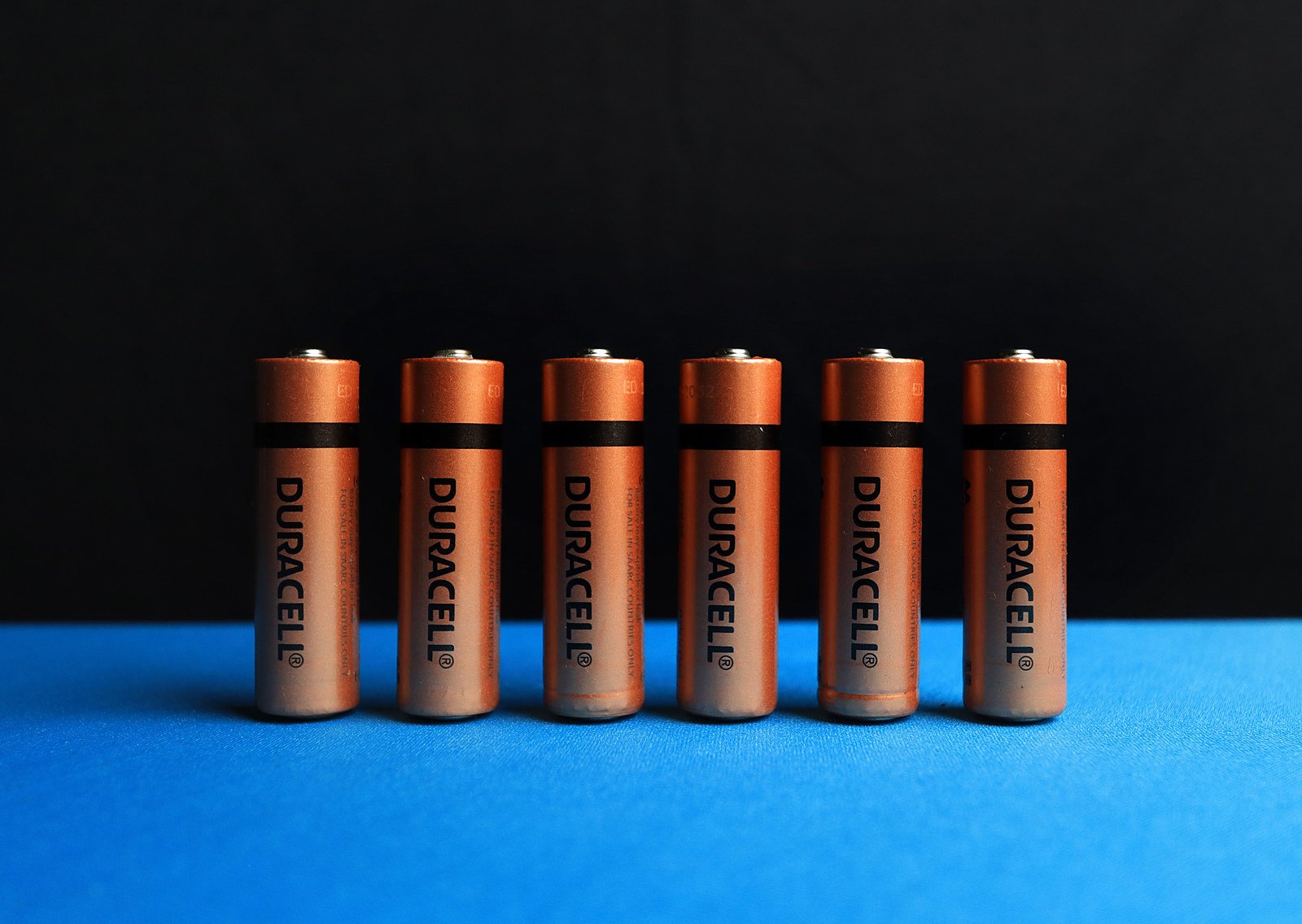
When a Yale Assure Lock 2 starts beeping, the most common cause is a low-battery condition. The lock relies on four AA alkaline batteries for power. If any of those cells are weak, installed backward, or not seated correctly, the lock may beep repeatedly and ignore keypad entries.
Before you open the battery compartment, gather a fresh set of AA alkaline cells. Keep a spare set nearby so you can swap them quickly if the lock alerts you again later.
- Open the battery cover. Press the release latch and lift the cover to expose the battery compartment.
- Confirm the battery count. The lock should contain exactly four AA alkaline batteries.
- Check polarity. Each battery must be oriented with the positive (+) and negative (–) ends matching the markings inside the compartment.
- Verify seating. Push each cell gently until it sits firmly against the contacts. A loose battery can cause intermittent power loss.
- Close the case. Ensure the battery cover snaps shut completely.
- Look for a low-battery indication. If the lock shows intermittent red flashes or a “Low Battery” LED, replace all four cells even if only one appears weak.
- Insert fresh batteries. Place the new AA alkaline cells with the correct polarity and fully seat them.
- Secure the cover. Press the battery case until it clicks closed.
- Reset the real-time clock. After the batteries are replaced, go to the User Interface (or the Yale Access app) and set the clock. This step is important if the lock observes Daylight Saving Time.
- Test the lock. Enter a valid 4-to-8 digit code within five seconds. The lock should respond without beeping.
| Battery Type | Quantity |
|---|---|
| AA Alkaline | 4 |
| Spare set (recommended) | 1 set (4 cells) |
If the lock continues to beep after you have verified the batteries, confirmed polarity, and reset the clock, the issue may lie elsewhere in the wiring or hardware. In that case, follow the additional troubleshooting steps for the cable connection, wire harness, and strike-plate alignment, or contact Yale support for warranty service.
How Do I Resolve Beeping When the Keypad Is Unresponsive?
If the keypad stays silent when you tap a button, the lock may be unable to receive power or communicate with its internal board. Start with the simplest check and move toward the deeper fixes.
- Test each key. Press every keypad button once. If any button produces a response, the keypad is at least partially functional. If nothing happens, continue to the next step.
- Replace the four AA alkaline batteries. Dead cells or reversed polarity make the lock mute. Remove the battery pack, insert fresh alkaline batteries, and be sure the polarity matches the markings. The Yale Assure Lock 2 uses four AA alkaline batteries.
- Verify the internal wiring harness. After the batteries are fresh, look at the connection between the lock’s PCB and the wire harness. A loose or pinched harness can keep the lock from powering the keypad. Disconnect the harness, then reconnect it firmly.
- Use the 9-V backup for key-free models. For the Yale Assure Lock 2 key-free versions (YRD450/YRD420), a 9-V battery can be placed in the terminals beneath the keypad. This supplies temporary power when the main AA cells are exhausted.
- Perform a factory reset via the Yale Access app. If the lock still does not respond, open the app, locate the reset option, and follow the on-screen prompts. After resetting, set up the lock again as a new device.
| Battery Type | Quantity |
|---|---|
| AA Alkaline | 4 |
| 9-V (backup, key-free only) | 1 |
When the lock finally reacts, test a valid 4-to-8 digit code within five seconds of activation. Should the lock continue to beep after these steps, the problem likely lies in the hardware beyond the user’s reach.
At that point, contact Yale support. The lock is covered by the manufacturer’s warranty, and Yale can arrange repair or replacement if the issue persists.
Why Is My Yale Lock Beeping After Entering a Code?
If the lock beeps right after you hit the checkmark key, it means the code you entered didn’t match what the lock expects. The beep is a warning, not a malfunction.
The Yale Assure Lock 2 only accepts entry codes that are between four and eight digits long. After the lock lights up, you have a five-second window to type the full code and press the checkmark. Anything shorter, longer, or entered after the window ends triggers a beep and an error message.
| Message | What It Means |
|---|---|
| Invalid code | The entered digits do not match any stored code. |
| Wrong number of digits | The code was incomplete; you need 4-8 digits. |
| Lockout Mode | The lock has been placed in lockout by the Master user. |
Follow these steps to clear the beep and get the lock responding again:
- Check the code length. Make sure you are typing exactly four to eight digits.
- Enter quickly. Begin typing as soon as the keypad lights up and press the checkmark within five seconds.
- Re-enter the correct code. If you hear a beep, delete the entry (if the lock allows) and type the full, correct code again.
- Verify lockout status. If the lock displays “Lockout Mode,” only the Master Entry Code can turn it off.
- Disable Lockout Mode. Using the Master code, open the Yale Access app, go to Lock Settings → Lock → Lockout Mode, and toggle it off. If you cannot access the app, press the Yale logo, enter the Master code, select the Gear icon, and turn off Lockout Mode from the settings screen.
- Test a valid code. After disabling lockout, enter any stored 4-8 digit code within the five-second window. The lock should unlock.
If the lock continues to beep after you have confirmed the code is correct and lockout is disabled, the issue may be hardware-related. At that point, contact Yale support for warranty service.
How to Address Beeping Due to Wiring or Strike Plate Issues?
If the lock is beeping and you suspect a wiring problem, start by checking the cable that runs from the lock to the PC board. The cable must be fully connected and free of any pinches or damage. A compromised cable can stop the lock from responding and trigger continuous beeps.
Next, look at the wire harness that attaches to the PCB inside the lock. A loose harness is a common cause of beeping. Make sure the harness clicks firmly into place and shows no signs of being pulled or twisted.
When the wiring looks solid, turn your attention to the deadbolt’s interaction with the strike plate. If the bolt hits the plate too early, the lock will emit a series of beeps and may flash red. Adjust the strike plate or deepen the strike pocket so the bolt can extend fully.
| Adjustment | Minimum Requirement |
|---|---|
| Strike-plate depth | 1 inch |
After the strike plate is set correctly, inspect the gap around the door. Small objects, such as paint chips, debris, or a misaligned latch, can block the deadbolt. Remove anything that could obstruct the bolt’s travel.
- Verify the cable. Pull gently on the cable to confirm it is not pinched. Re-seat it if you notice any slack.
- Secure the wire harness. Disconnect and reconnect the harness to ensure a firm attachment to the PCB.
- Check deadbolt movement. Close the door and watch the bolt. If it stops short, proceed to the next step.
- Adjust the strike plate. Move the plate or deepen the pocket to at least 1 inch, then retest the lock.
- Clear door gaps. Look for foreign objects in the frame and remove them before testing again.
Run a quick test after each step. Enter a valid 4-to-8 digit code. If the lock unlocks without the continuous beeping, the issue is resolved.
Should the lock continue to beep after you have verified the cable, harness, strike plate depth, and door gaps, the problem may be deeper than a simple wiring or alignment issue. At that point, contact Yale support for warranty service.
What Are the Auto‑Lock and Lockout Mode Settings That Can Trigger Beeping?

If the lock does not auto-re-lock, verify that Auto Re-lock Mode is turned on; turning it off will keep the door unlocked. To have the lock engage automatically, adjust the setting in the Yale Access app.
Lockout Mode behaves differently. Only the Master Entry Code can enable or disable All Code Lockout Mode. When active, the lock displays a red padlock icon and emits a special tone. If Silent Mode is also on, no sound will be heard.
| Setting | Effect on beeping | How to change |
|---|---|---|
| Auto Re-lock Mode | Disabled → lock stays unlocked. | Yale Access app → Lock Settings → Auto-Lock toggle |
| All Code Lockout Mode | Enabled → red padlock icon, special tone. | Yale Access app → Lock Settings → Lockout Mode toggle (Master only) |
| Silent Mode | Enabled → all sounds silenced. | Yale Access app → Settings → Silent Mode (toggle off to hear alerts) |
Enable or disable Auto Re-lock Mode
- Open the Yale Access app on your phone.
- Tap Lock Settings for the Assure Lock 2 you are troubleshooting.
- Find the Auto-Lock switch. Turn it on to lock automatically after each use, or turn it off for manual locking.
- Save the change and test the lock by entering a valid code.
Check and adjust Lockout Mode
- Launch the Yale Access app and select the same lock.
- Go to Lock Settings → Lockout Mode.
- If the red padlock icon appears, the mode is active. Only the Master user can turn it off.
- Switch the toggle to off and confirm the change.
- Test a code entry; the lock should respond as expected.
Verify Silent Mode
- In the app, open Settings for the lock.
- Locate the Silent Mode option.
- Make sure the toggle is set to off so the lock can emit its warning beeps.
After adjusting these settings, replace any depleted batteries and close the battery case. If the lock continues to beep, the problem may be deeper; contact Yale support for warranty service.
How to Reset or Factory Reset a Yale Smart Lock When Beeping Persists?
If the lock keeps beeping after you’ve tried the basic battery and wiring checks, you may need additional troubleshooting.
Soft reset, battery cycle and Bluetooth sync
- Take out all four AA alkaline batteries from the lock.
- Wait a few seconds, then reinstall the fresh batteries, making sure the polarity is correct.
- After the batteries are seated, the lock’s real-time clock may need resetting. Open the Yale Access app, go to the lock’s settings, and follow the prompt to set the clock.
- With the lock powered, press the thumbturn to lock and then unlock once.
- Open the app, select the lock, and tap Sync via Bluetooth. Keep the phone within a few feet for about five seconds while the lock confirms the connection.
When the activity log was previously frozen, this sequence restores normal logging and often stops the unwanted beeping.
Factory reset, start fresh from the app
- Open the Yale Access app on your smartphone.
- Open Settings for the lock and find the Factory Reset option. (The exact wording may vary, but the app guides you to “reset” the device.)
- Confirm the reset when prompted. The lock erases all stored entry codes, user preferences, and custom settings.
- After the lock restarts, the app will walk you through the initial setup: connect to Bluetooth, name the lock, and set a new Master Entry Code.
- Re-add any additional user codes, enable Auto-Lock or other features, and verify that Silent Mode is turned off if you want audible alerts.
Factory resetting removes any hidden lockout or audio-mode configurations that might be causing continuous beeps.
What to do next
Once the lock is back online, test a few entry codes. If the lock beeps only when a code is entered incorrectly, the issue is resolved. If the beeping continues despite a fresh battery cycle, Bluetooth sync, and a complete factory reset, the problem is likely deeper.
At that point, follow the manufacturer’s warranty advice: contact Yale support for repair or replacement. Persistent beeping that does not match the documented low-battery or jam patterns should be handled by a qualified service technician.
When It’s Time to Replace It
If the lock continues to beep after you have replaced all four AA alkaline batteries, verified correct polarity, and confirmed the wiring harness is securely attached, you have followed the recommended troubleshooting steps.
At that point the cost and effort of further diagnosis outweigh the benefit, and replacing the unit is the sensible choice.
A compatible deadbolt will save you time during installation.
Keypad smart deadbolt
Check current keypad smart deadbolt options on Amazon
Choose a lock that supports the same entry-code length (4-8 digits) and offers an easy-to-use app for remote management. Battery life and a clear low-battery indicator are essential features.
Battery-powered smart lock
Check current battery-powered smart lock options on Amazon
Make sure the replacement uses four AA alkaline batteries.
Wired electronic lock
Check current wired electronic lock options on Amazon
Finally, keep a spare set of AA alkaline batteries on hand for any new lock you install. Fresh batteries and correct polarity will prevent the most common beeping issue from recurring.
Related Smart Home Guides
- Yale Lock Not Working After Battery Change: Easy Fix (2026)
- Yale Linus L2 Lite Review: The £130 Matter Smart Lock, Rated
- Best Smart Lock Without WiFi 2026: 5 Offline Picks I Trust
- Best Smart Lock With Physical Key Backup (2026): 5 Keyed Picks That Never Lock You Out
- Best Solar-Powered Smart Locks in 2026: 4 Deadbolts That Charge Themselves
Yale Lock Keeps Beeping: Frequently Asked Questions
Yale smart locks often beep to tell you something needs attention. The most common reasons are low or incorrectly installed batteries, a code entry problem, or a hardware connection that isn’t secure. Understanding the exact cause helps you stop the noise quickly and keep the lock working reliably.
Why does Yale lock keep beeping?
The lock beeps when it detects a low-battery condition or a problem with the entry code. Replace all four AA alkaline batteries with fresh ones, checking polarity, and make sure the code you entered is complete and pressed within five seconds. If the beeping continues, verify the wiring harness is firmly attached to the PCB.
Why does Yale Assure Lock 2 keep beeping?
Yale Assure Lock 2 beeps primarily because the four AA alkaline batteries are low, dead, or installed with the wrong polarity. Swap the batteries for new alkaline cells and confirm they are seated correctly. Also inspect the cable to the PC board for any pinching or loose connections that could trigger the alert.
Why is my Yale lock beeping after a code?
The beep after a code means the lock did not accept the entry. This happens when the PIN is incorrect, incomplete, or entered after the five-second window. Re-enter the full 4-to-8 digit code within five seconds and press the checkmark key. If the lock still signals an error, the Master Code may need to adjust lockout settings.
Yale digital lock keeps beeping, what to do?
First check the battery status; a steady red LED with five beeps signals low power. Replace all four AA alkaline batteries and ensure they are oriented correctly. Next, confirm the wire harness is securely attached to the PCB and that the deadbolt is not jammed against the strike plate.
Yale smart lock keeps beeping, troubleshooting steps?
Begin by verifying the four AA alkaline batteries are fresh and correctly installed. Then press each keypad button to see if any respond, indicating a keypad issue. If the lock still beeps, examine the cable to the PC board for damage and make sure the internal wiring harness is fully connected.
Yale keypad lock keeps beeping, quick fix?
Replace the four alkaline batteries with new ones, checking polarity, and close the battery case securely. If the beep persists, press the Yale logo to re-enter Setup Mode and ensure the entry code is entered correctly within five seconds. Finally, double-check that the wire harness is firmly attached to the lock’s PCB.
Keeping spare AA alkaline batteries nearby and confirming all connections are tight will prevent most beeping issues. If you have followed these steps and the lock still sounds, the manufacturer’s warranty covers repair or replacement, so contact Yale support for further assistance.
How we researched this: This guide is based on official manufacturer manuals and support documentation, rewritten in plain English and organized by symptom. Where noted, we also share our own hands-on experience. Steps can differ by model and firmware, so check your model number first.
As an Amazon Associate, TechVibeSpot earns from qualifying purchases.