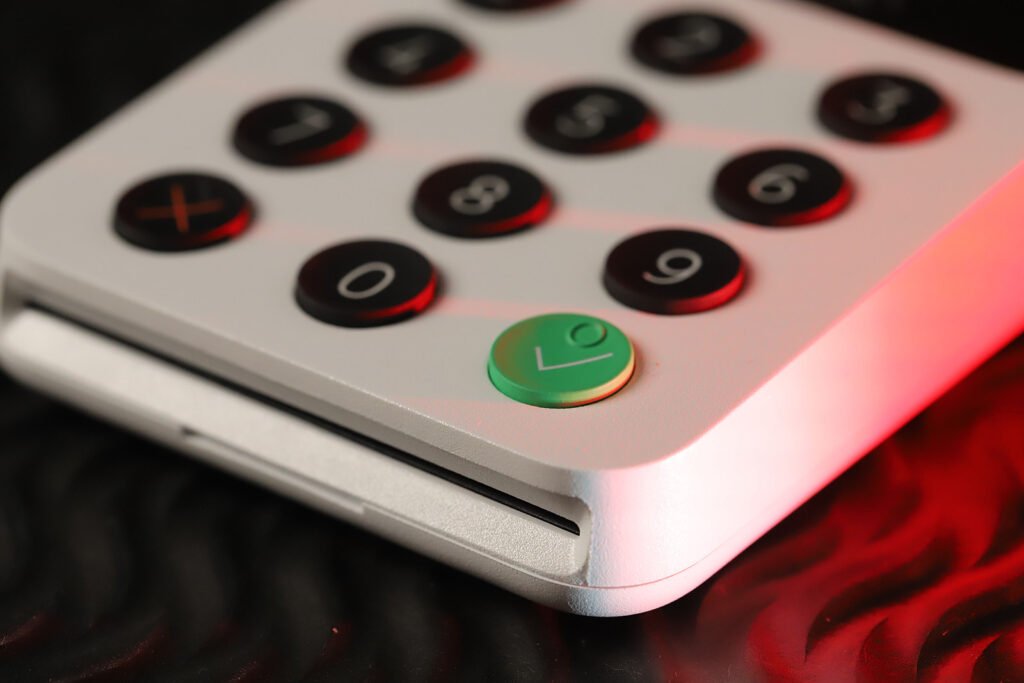
Yale assure lock 2 pin code not working (quick answer): If your Yale Assure Lock 2 pin code is not working, first check the batteries. Replace all four AA alkaline cells if the keypad is unresponsive or lights are dim. Ensure the code is 4-8 digits and entered within 5 seconds. If the lock beeps three times, the code is incorrect or incomplete.
The Yale Assure Lock 2 often stops reacting to a PIN because the power source is weak or installed incorrectly. The lock relies on four AA alkaline batteries; a low-battery LED or dim lights signal that the cells need replacement. Start by removing the battery cover, checking that each battery is inserted with the correct polarity, and swapping all four cells for fresh ones.
If fresh batteries are in place and the lock still ignores your entry, confirm that the PIN you are typing follows the required format. Entry codes must be 4-8 digits, unique per user, and entered within 5 seconds after the keypad activates. After typing the digits, press the check-mark icon to submit the code.
- Press the Yale logo to wake the keypad (the lock may be open).
- Test each button; if none register, double-check battery polarity and replace the four AA alkaline batteries.
- Enter a code that is between 4 and 8 digits, then tap the checkmark icon.
- If the lock shows “invalid code” or “Wrong number of digits,” re-enter the correct code and submit again.
| Battery type | Quantity |
|---|---|
| AA alkaline | 4 |
Following these steps resolves the most frequent cause of a non-working PIN on the Yale Assure Lock 2.
What Does It Mean When My Yale Lock Beeps?
A single buzz means the keypad registered the entry but the code didn’t match any stored PIN. The lock treats this as a wrong-code attempt (S5).
If you hear two quick buzzes, the keypad and the lock body are not talking to each other. The lock cannot verify the entry, so it alerts you with the double buzz (S5).
Three beeps followed by a flashing keypad indicate the PIN was entered incorrectly or the entry was incomplete. The lock signals the problem with both sound and light (S2).
If the lock shows a “Low Battery” alert, replace all four AA alkaline cells. Lockout Mode can be cleared in the Yale Access app.
| Beep count | LED action | Meaning |
|---|---|---|
| 1 | Wrong code entered (code does not match any user PIN) (S5) | |
| 2 | Keypad not communicating with lock body (S5) | |
| 3 + flash | Keypad flashes | PIN incorrect or incomplete (S2) |
Lockout Mode can be disabled in the Yale Access app by the Master user.
To clear a lockout, open the Yale Access app, locate the lock, and disable Lockout Mode under the lock’s settings.
Why Is My Yale Lock Not Responding to Codes?
If the lock shows no reaction when you try a PIN, start by confirming the keypad is actually awake. With the door open, press the Yale logo; this wakes the keypad on both touchscreen and push-button versions (S1).
Once the keypad lights appear, tap each number key. The lock should acknowledge each press.
When the lock powers up but the LEDs are faint, the batteries are not providing enough voltage. Swap the four AA alkaline cells for fresh ones; the lock will regain full power (S1).
A silent lock that flashes red intermittently is a classic low-battery warning. Replace all four AA alkaline batteries to clear the condition and restore normal operation (S2).
If the keypad works but the Yale Access app still controls the lock, the two are out of sync. A factory reset returns the lock to its default state, after which you can set it up again in the app (S1).
| Symptom | Likely cause | Fix |
|---|---|---|
| No keypad response (door open) | Keypad not activated | Press Yale logo to wake keypad (S1) |
| Dim LEDs | Insufficient battery power | Replace four AA alkaline batteries (S1) |
| Silent with red flashes | Low-battery condition | Replace all four AA alkaline batteries (S2) |
| App works, keypad does not | Lock out of sync | Perform factory reset and re-pair in app (S1) |
After any battery change, verify the lock’s clock and date, especially if the unit observes daylight-saving time. This step ensures time-based features such as Auto-Lock function correctly.
Should the keypad still refuse to register presses after confirming power and activation, the lock harness may be loose or pinched. A loose connection can stop the lock from responding (S1). Inspect the harness and reseat it if necessary.
When you have completed these checks and the lock still does not react to valid PINs, the warranty covers manufacturing defects. Contact Yale support for repair or replacement options (S2).
How to Change Battery on Yale Assure Lock 2
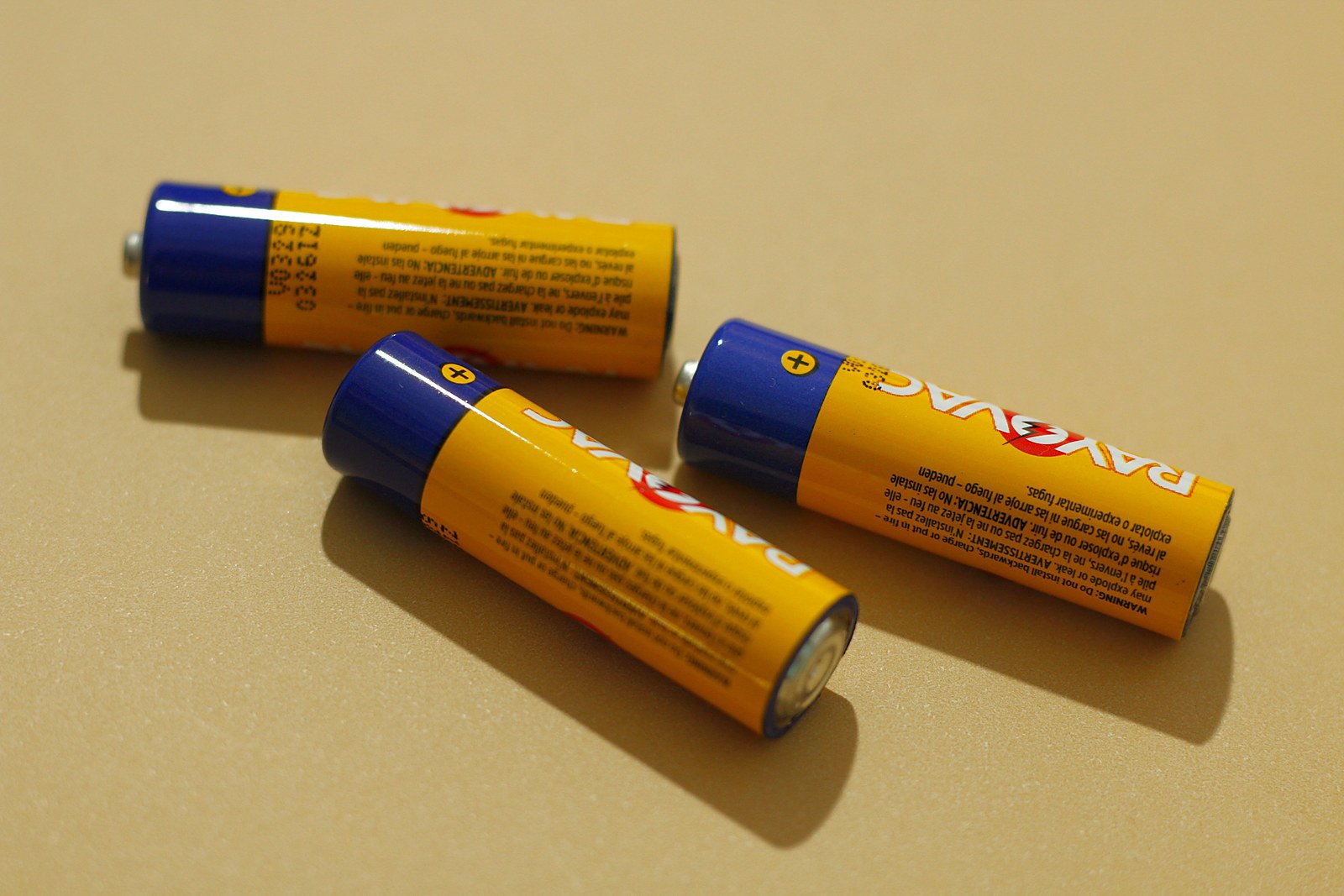
The Yale Assure Lock 2 runs on four AA alkaline batteries. When the power runs low, the lock may stop responding, the lights can dim, or the clock can reset. Replacing the cells restores full function.
| Model | Battery type | Quantity |
|---|---|---|
| Yale Assure Lock 2 (push-button) | AA alkaline | 4 |
Battery-change procedure
- Open the battery compartment. Slide the battery cover upward until it releases, then lift it off.
- Disconnect the ribbon. Gently pull the ribbon cable out of its socket so the batteries can be accessed.
- Remove the old cells. Take out all four AA batteries. Remember, removing them resets the lock’s clock.
- Check polarity. Look at the markings inside the compartment; the positive (+) and negative (–) ends must match the diagram. Reversed polarity prevents the lock from working.
- Insert fresh batteries. Place four new AA alkaline batteries, aligning the terminals correctly.
- Reconnect the ribbon. Push the ribbon cable back into its socket until it clicks.
- Replace the cover. Slide the battery cover back down until it locks into place.
After the new cells are in place, the lock’s internal clock will have been cleared. Open the Yale Access app, select the lock, and confirm the date and time on the lock’s UI. Adjust for Daylight Saving Time if your unit observes it.
If the lock shows no reaction while the door is locked, use the physical key to open the door first, then follow the steps above to replace the batteries. This ensures the lock receives power before you attempt any keypad entry.
Finally, test the keypad. Press a few numbers to verify they register, then enter a valid 4-8-digit code and tap the check icon. The lock should chime and the door should unlock. If it still does not respond, double-check battery polarity and make sure the batteries are fresh alkaline cells.
Why Does My Yale Lock Keep Beeping Constantly?
Low-Battery Fix Replace all four AA alkaline batteries with new cells.
If the lock still chimes after you enter a code but the door remains closed, something is blocking the mechanism. Look for any foreign objects lodged in the door gaps and verify that the wire harness inside the lock is firmly connected to the printed-circuit board.
When the lock appears silent, no beeps or chimes at all, sound may be disabled in the Yale Access app. Open the app, tap Lock Settings, select your lock, and turn the sound option on. The lock will then provide audible feedback for future entries.
Finally, if the lock unlocks but does not re-lock automatically, the Auto-Lock feature is likely turned off. Enable Auto-Lock in the Yale Access app, and the deadbolt will engage after the preset delay.
| Symptom | Action | Source |
|---|---|---|
| Low Battery alert | Replace all four AA alkaline batteries | S1 |
| Chime but door stays closed | Remove foreign objects from door gaps; ensure wire harness is securely connected | S1, S2 |
| No sound at all | Enable sound in Yale Access app (Lock Settings → select lock → turn on sound) | S1 |
| Unlocks, does not auto-lock | Activate Auto-Lock feature in Yale Access app | S1 |
How to Fix Invalid Code or Lockout Mode
When you type a PIN on a Yale Assure Lock 2, the lock expects a specific format. Entry codes must be between 4 and 8 digits, each code must be unique for its user, and the numbers have to be entered within 5 seconds after the keypad becomes active (S1, S2). After typing the full code, tap the check icon to submit it (S1).
If the lock flashes “Wrong number of digits,” you simply need to re-enter the correct length code and press the check key again (S1). A mistyped or incomplete PIN triggers a three-beep tone and three keypad flashes; just try the correct code once more (S2).
When the lock displays “invalid code” or the entry times out, it is likely in Lockout Mode. Only the Master Code can turn Lockout Mode on or off, so you must use that code to change the setting (S2). The Yale Access app provides a straightforward way to disable Lockout Mode: open the app, select the lock, go to its settings, and toggle the Lockout option off (S1).
Steps to Resolve an Invalid Code or Lockout Situation
- Confirm the keypad is active and that you are entering a 4-8 digit code.
- Enter the code within five seconds of activation.
- Press the check icon to submit.
- If “invalid code” appears, open the Yale Access app.
- Open the lock’s settings and locate the Lockout Mode toggle.
- Use the Master Code, if prompted, to turn Lockout Mode off.
- Return to the keypad and retry the original code.
| Condition | Required Action | Source |
|---|---|---|
| Code length not 4-8 digits | Re-enter correct length and press check | S1 |
| Code entered too slowly | Enter within 5 seconds of activation | S1, S2 |
| “Invalid code” or timeout | Disable Lockout Mode in Yale Access app (Master Code only) | S1, S2 |
| Incorrect PIN entry | Listen for three beeps, watch three flashes, then re-enter correct code | S2 |
After you have turned off Lockout Mode, test a few different user codes to verify they all register correctly. If the lock still refuses valid codes, double-check that the Master Code you used is correct and that the lock’s firmware is up to date. Otherwise, the warranty covers manufacturing defects, and you can contact Yale support for a repair or replacement (S2).
Why Won't My Yale Lock Open After Entering Code?
If the lock chimes after you type a code but the door stays shut, the first thing to check is whether anything else is keeping the door latched. Look for any secondary lock, deadbolt, or latch that might be engaged on the same door leaf.
Next, inspect the gap around the door frame. Small objects such as paint chips, debris, or a mis-aligned strike plate can jam the bolt. Clear any foreign material you see, then try the code again.
Even when the keypad seems responsive, the lock’s internal wiring can be the culprit. Open the lock’s interior (if you are comfortable doing so) and verify that the cable and wire harness are firmly seated on the printed-circuit board. A loose harness can stop the motor from receiving power, causing the chime without any movement.
When the motor does not move at all, the problem is often a code-validation issue. Open the Yale Access app, go to the Guest List screen, and confirm that the code you are using appears there and is marked as active. If the code is missing or disabled, create a new entry code and try it on the keypad.
After you have verified the wiring, cleared any obstructions, and either re-handed or confirmed the code, test a few different user codes. Successful operation should include a clear chime, a brief motor movement, and the bolt retracting fully.
If the lock still refuses to open, the issue may be deeper than the steps covered here. At that point, the warranty covers manufacturing defects, and you should contact Yale support for repair or replacement.
How to Reset Yale Lock Pin and Keypad

Start by powering the lock off briefly. Remove one of the four AA batteries, wait a few seconds, then reinstall it. After the battery is back in place, try entering a known code. If the lock still ignores the keypad, move on to a full keypad reset.
- Open the Yale Access app. Make sure your phone is within Bluetooth range of the lock.
- Tap the gear icon at the bottom of the screen.
- Select Keypad settings from the menu.
- Choose Disconnect the Keypad. The app will generate a four-digit reset code and send it to the lock.
- Enter the reset code on the lock’s keypad and press the check-mark key.
- The keypad will confirm the reset, then all stored entry codes disappear. You will need to add each user code again through the app.
Because the reset wipes every code, re-add them immediately. Open the app, go to the Guest List or Codes section, and create each 4-8-digit PIN you want to use. Remember to press the check icon after typing each code (S5).
If the keypad remains unresponsive while the lock still works from the app, the lock and keypad have lost synchronization. In that case perform a factory reset and set up the lock anew (S1). To do this, follow the factory-reset instructions in the app’s lock-settings screen, then run through the normal installation wizard as if the lock were brand new.
After any battery change or reset, you should resync the lock’s clock. Open the Yale Access app, connect to the lock via Bluetooth, and stay on the lock’s status screen for about five seconds. Then use the thumbturn on the lock to manually lock and unlock once. This action updates the lock’s internal clock and ensures time-based features, such as Auto-Lock or Daylight-Saving adjustments, work correctly (S1).
When you finish these steps, test a few different user codes. If the lock still refuses to open, the issue may be beyond a reset, and you should consult Yale’s warranty support for repair or replacement (S2).
What to Do If Firmware Is Outdated?
The Yale Assure Lock 2 will not honor temporary entry codes if its firmware is older than version 1.3.16. The lock must run firmware 1.3.16 or newer for temporary codes to work reliably.
If the lock shows a version of 1.3.15 or lower, update it through Bluetooth. Open the Yale Access app, go to the Lock Status screen, and tap the update prompt. The app will download the new firmware and install it while the lock is within Bluetooth range. The process can take several minutes, so keep the phone nearby until the lock confirms the update is complete.
When a Bluetooth update will not start, the next step is to turn off the Airbnb integration. In the app, open the main menu, select the Airbnb option, and deactivate it. After disabling Airbnb, delete every upcoming reservation that uses a Temporary access code. Those codes must be removed before the firmware can be refreshed.
Once the integration is off and the old temporary codes are gone, try the Bluetooth update again. If the update succeeds, reactivate Airbnb only after you have created new temporary codes.
When creating temporary codes on a freshly updated lock, add each code at the guest’s check-in time and delete it at check-out. This practice avoids the known issue where older firmware lets temporary codes linger past their expiration.
- Check the firmware version on the Lock Status screen.
- If version ≤ 1.3.15, tap the update button and wait several minutes.
- If the update will not start, open the app menu and deactivate Airbnb.
- Delete all upcoming reservation codes that use Temporary access.
- Retry the Bluetooth firmware update.
- After a successful update, reactivate Airbnb and add new temporary codes only for active stays.
How to Use Emergency Power for Yale Locks
If the lock does not respond while the door is open, press the Yale logo. This wakes the keypad on both touchscreen and push-button versions.
Key-free models (YRD450/YRD420) can use a 9 V battery connected to the terminals below the keypad when the internal AA batteries are fully drained.
Standard Assure Lock 2 units that use four AA alkaline batteries rely on battery replacement as the primary remedy. The 9 V backup option is limited to the YRD450/YRD420 key-free models and does not apply to other variants.
| Model | Emergency Power Method |
|---|---|
| YRD450 / YRD420 (key-free) | Connect a 9 V battery to the terminals below the keypad |
| Standard AA battery models | Replace the four AA alkaline batteries |
- Confirm the door is open and press the Yale logo to activate the keypad.
- For YRD450 or YRD420, attach a 9 V battery to the two terminals under the keypad.
- Watch for the keypad lights to illuminate, then enter your 4-8-digit code and press the check icon.
After emergency power restores functionality, replace the depleted AA batteries with fresh cells as soon as possible to return the lock to normal operation.
When It’s Time to Replace It
If you have gone through every step, checking the keypad, confirming battery polarity, securing the harness, resetting the lock, and updating the firmware, and the lock still won’t respond.
The Yale warranty covers manufacturing defects. When all troubleshooting has been exhausted and the lock remains unresponsive, the next step is to contact Yale support for a repair or replacement.
When choosing a new deadbolt, make sure the replacement uses four AA alkaline batteries, just like the Assure Lock 2. This keeps battery purchases simple and lets you keep a spare set on hand.
Look for a model that includes a real-time clock if you need Daylight-Saving-Time adjustments. The clock must be set after any battery change, so a lock with that feature will match the behavior you’re used to.
For a keypad smart deadbolt, pick a unit that supports the same entry-code length (4-8 digits) and offers a master code for lockout management.
Check current keypad smart deadbolt options on Amazon
A touchscreen smart lock should have an easy-to-activate keypad that lights up when you press the Yale logo, and it must be able to sync with the Yale Access app for auto-lock settings.
Check current touchscreen smart lock options on Amazon
If you rely on home-automation, a Z-Wave smart lock is the right choice. Verify that the lock’s firmware can be updated past version 1.3.16 and that it respects DST settings to avoid lock-out issues.
Check current z-wave smart lock options on Amazon
Finally, keep the new lock’s warranty information handy. If a defect appears later, the manufacturer will handle repair or replacement under the same terms that applied to your original Assure Lock 2.
Related Smart Home Guides
- Yale Lock Code Not Working: Easy Fix Guide (2026)
- Yale Lock Not Working After Battery Change: Easy Fix (2026)
- Yale Lock Battery: Easy Guide to Replace & Fix (2026)
- How to Reset Yale Lock: Easy Step-by-Step Guide (2026)
- Yale Lock Keeps Beeping: Easy Fix Guide (2026)
Yale Assure Lock 2 Pin Code Not Working: Frequently Asked Questions
How we researched this: This guide is based on official manufacturer manuals and support documentation, rewritten in plain English and organized by symptom. Where noted, we also share our own hands-on experience. Steps can differ by model and firmware, so check your model number first.
As an Amazon Associate, TechVibeSpot earns from qualifying purchases.