A smart lock that will not connect to Wi-Fi is one of the most common and most fixable frustrations in a smart home. The important thing to know first: the lock still works at the door – keypad, fingerprint, and app-over-Bluetooth are all fine – you have only lost remote control and alerts until the connection is back. This guide walks through the causes in the order that fixes the most cases fastest, starting with the single issue behind most Wi-Fi failures. Written for August 2026.
How we assess: this guide is based on manufacturer documentation, official setup instructions, and verified owner reports.
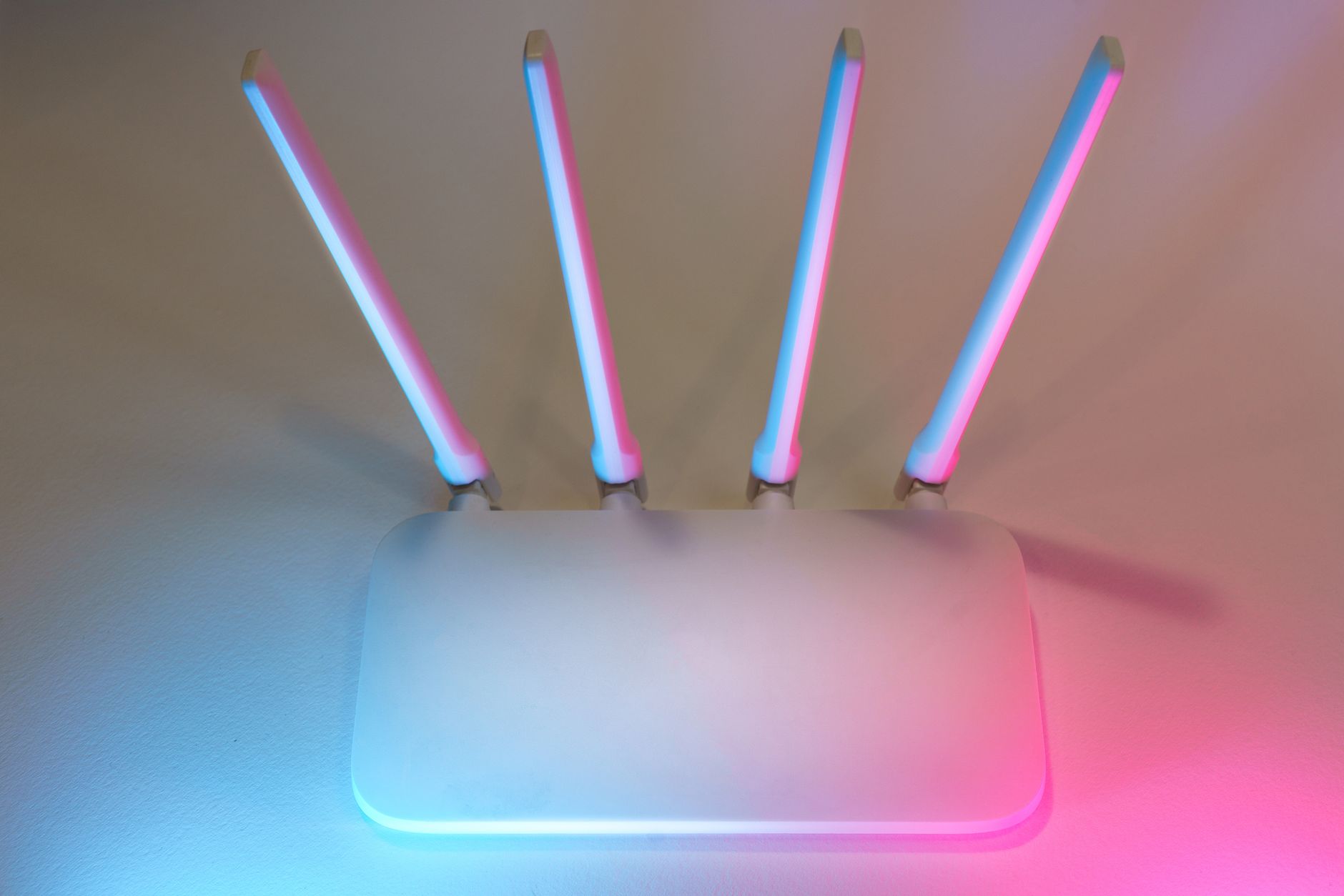
Why won’t my smart lock connect to Wi-Fi? The usual cause is the lock or its bridge trying to join a 5GHz network, but most smart locks only support 2.4GHz. Other frequent causes are weak signal at the door, low batteries, a wrong Wi-Fi password after a router change, or a bridge placed too far away. Work through them in that order.
Quick diagnosis
Before diving in, match your exact symptom to the most likely cause – it usually points straight to the fix.
| Symptom | Most likely cause | First fix to try |
|---|---|---|
| Won’t connect at setup | On a 5GHz network | Use the 2.4GHz band |
| Connects then drops | Weak signal at the door | Move router/bridge closer, add mesh |
| Was fine, now offline | Router name/password changed | Re-run Wi-Fi setup with new details |
| Random disconnects | Low batteries | Fit fresh batteries |
| Bridge offline | Bridge too far from lock/router | Reposition midway, in open air |
Start here: is it on the 2.4GHz band?
This single issue causes most Wi-Fi failures. Nearly all smart locks and bridges connect only to 2.4GHz, not 5GHz. If your router broadcasts both bands under one network name, the lock may try the wrong one. Temporarily split the bands or create a dedicated 2.4GHz network for setup, connect the lock to that, and the problem often disappears immediately.
Check the signal strength at the door
Front doors are often the far edge of a home’s Wi-Fi. If the signal is weak where the lock sits, it will drop repeatedly. Test with your phone at the door; if bars are low, move the router or bridge closer, or add a mesh node or extender near the entry. A Wi-Fi bridge should sit roughly midway between the router and the lock.
Rule out low batteries
Wi-Fi radios draw a lot of power, and a lock low on battery will often keep local functions working while quietly dropping the network to conserve energy. If the connection became unreliable recently, swap in fresh batteries before anything else – it is the fastest thing to rule out.
Did your Wi-Fi name or password change?
A new router, a changed password, or an ISP swap will silently break the lock’s saved connection. If anything about your network changed recently, remove the lock or bridge from its app and run the network setup again with the current details. This resolves a surprising share of “sudden” disconnects.
Restart in the right order
Power-cycle methodically: restart the router first and let it fully come back, then restart the lock’s bridge, then pull and reseat the lock’s batteries. Bringing them back in that order lets each device find a stable network to join rather than all scrambling at once.
Get the bridge placement right
If you use a plug-in Wi-Fi bridge, its position makes or breaks reliability. Place it in open air, not inside a cabinet or behind a TV, roughly halfway between the router and the lock, and well within Bluetooth range of the lock. Moving a poorly placed bridge a few feet often turns constant drops into a rock-solid connection.
When to reset and re-pair
If none of the above works, remove the device from the app and do a factory re-pair following the maker’s steps. Keep the phone, lock, and bridge close together during setup, on the 2.4GHz network, with good signal. If it still fails after a clean re-pair, contact the manufacturer – the radio module may be faulty and under warranty.
- Most failures are the lock trying to use 5GHz – force 2.4GHz.
- Weak signal at the door and low batteries are the next usual causes.
- A changed router name/password requires re-running Wi-Fi setup.
- Restart router → bridge → lock, in that order.
- The lock still works locally without Wi-Fi – only remote features pause.
FAQ
Why won’t my smart lock connect to Wi-Fi?
The usual cause is the lock or bridge trying to join a 5GHz network – most smart locks only support 2.4GHz. Other common causes are weak signal at the door, low batteries, a wrong password after a router change, or a bridge placed too far away.
Do smart locks use 2.4GHz or 5GHz?
Almost all smart locks and bridges use 2.4GHz only, because it travels further through walls and doors and uses less power. If your lock cannot find your network, a 5GHz-only or combined network is the most likely reason.
Why does my smart lock keep disconnecting?
Intermittent drops are usually weak signal at the door or low batteries. A bridge placed too far from the router, or a router auto-switching the lock between bands, also causes repeat disconnects. Improve signal, fit fresh batteries, and lock the device to 2.4GHz.
Will the lock still work without Wi-Fi?
Yes. Keypad, fingerprint, physical key, and Bluetooth entry all keep working offline. Losing Wi-Fi only removes remote control, guest codes from afar, and away-from-home notifications – the door itself is unaffected.
Where should I put the Wi-Fi bridge?
Place it roughly halfway between the router and the lock, in open air rather than inside a cabinet, and within solid Bluetooth range of the lock. A good bridge position fixes most range-related connection problems.
Why won’t my lock reconnect after I changed my router?
The lock stored your old network details. Any change to the network name or password means you must re-run the lock’s Wi-Fi setup with the new credentials; it will not reconnect on its own.
Could low batteries stop Wi-Fi but not the keypad?
Yes, and it is common. The lock prioritises low-power local functions and drops the power-hungry Wi-Fi radio first when batteries run low. Fresh batteries often restore the connection immediately.
Should I factory reset the lock?
Only after the simpler fixes fail. Remove the device from the app and do a factory re-pair following the maker’s steps, keeping phone, lock, and bridge close together on the 2.4GHz network. If it still fails, contact the manufacturer.
Sources
Compiled from manufacturer setup and troubleshooting documentation and verified owner reports. Checked August 19, 2026.
Last updated: August 2026.
Naveen Kumar Durai is the founder of Naveen AI Automation and the editor of TechVibeSpot. He writes practical smart-lock and home-security guides from manufacturer documentation, official setup instructions, and verified owner reports.